After following the Part 1 of the tutorial, we will now configure the iSpindel to connect to Grainfather (web version).
Account Creation / Account Login
Log in at the following address: https://community.grainfather.com/
Create your account, or log in to your account.
Adding a connected object
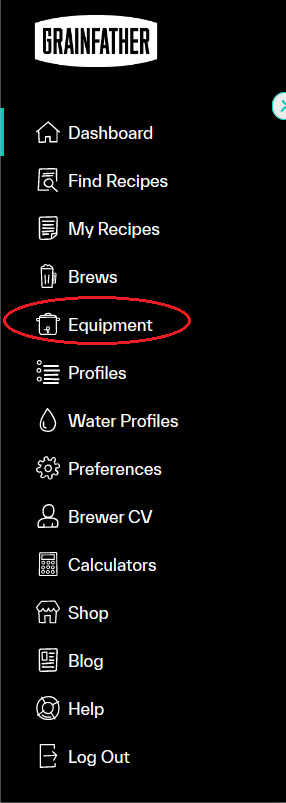
In the left-hand menu, click on “Equipment.”
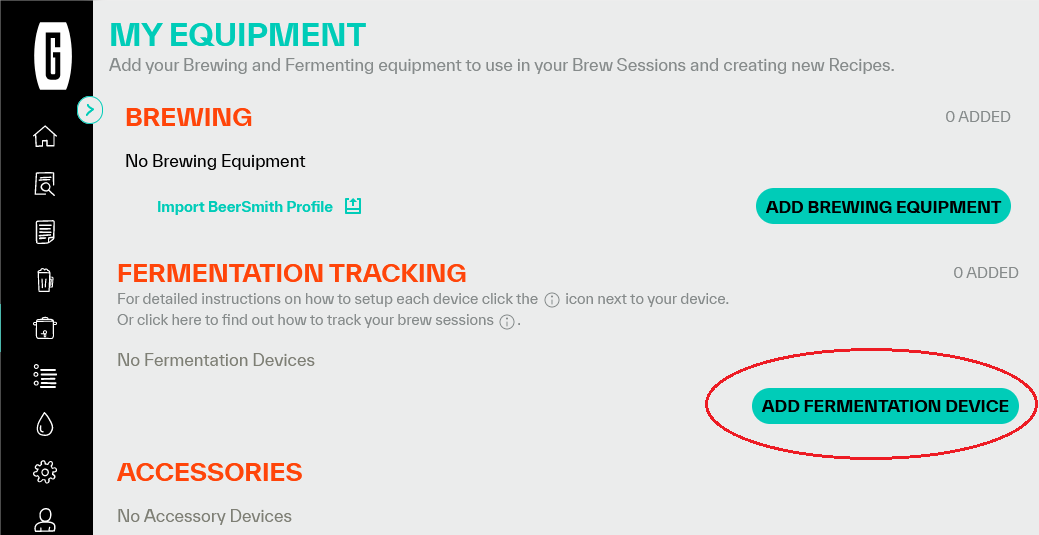
Then click “Add Fermentation Device”
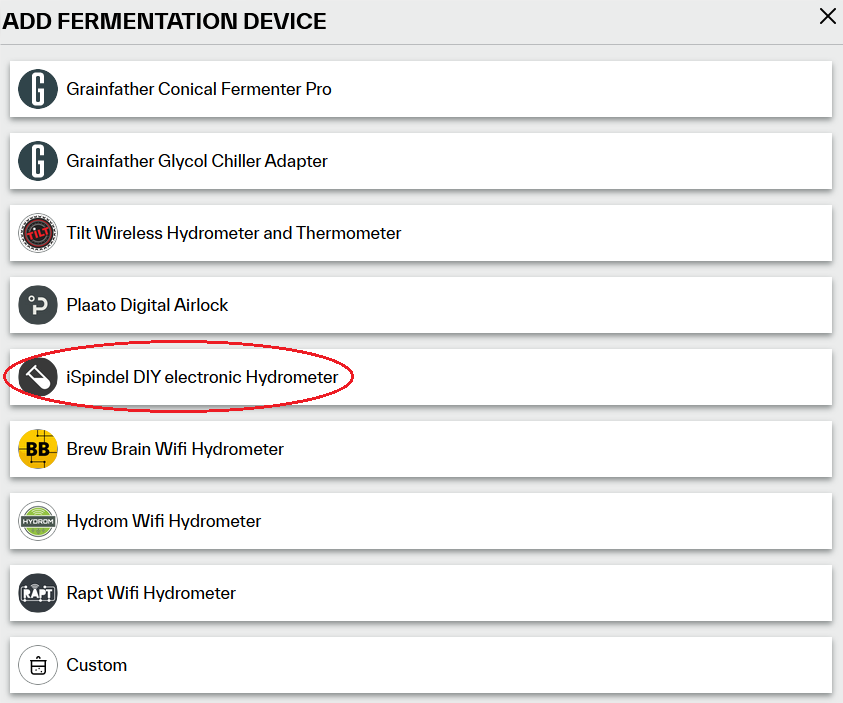
Select “iSpindel DIY electronic Hydrometer”
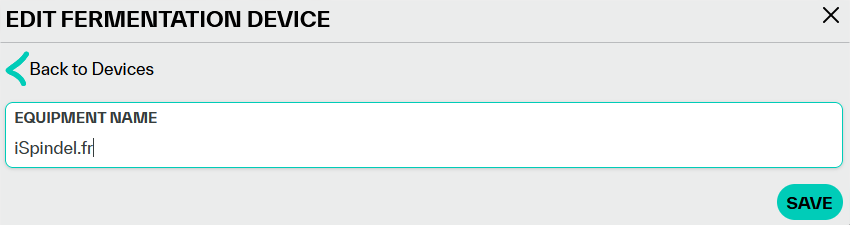
As requested, give your iSpindel a name
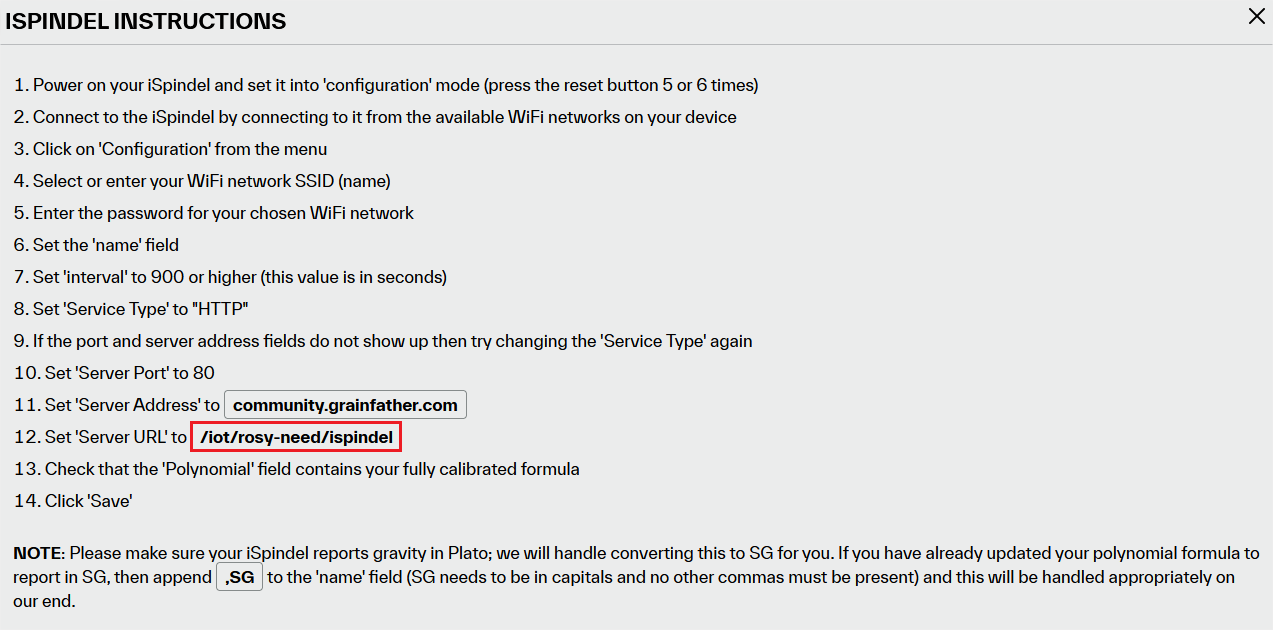
In the window that opens, click on “View Setup Instructions”.”

In the new window that opens, you will see the “Server URL” to enter in the iSpindel configuration settings.
iSpindel Configuration
Return to your iSpindel's configuration page, then click “Configuration”
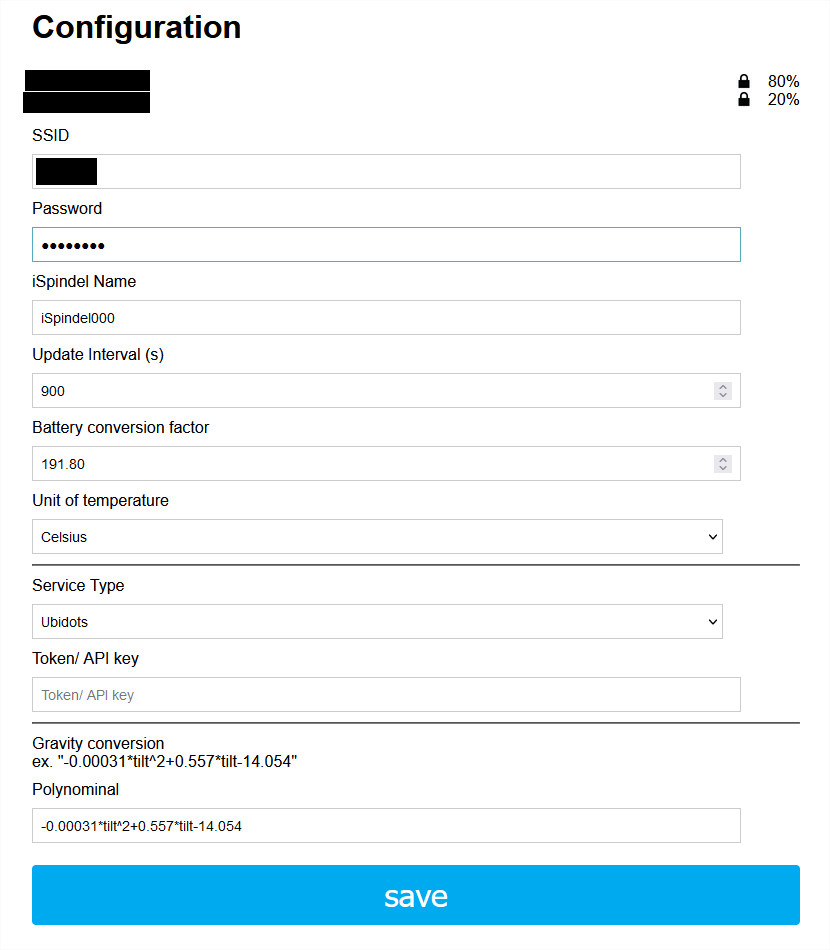
A configuration settings page opens.
The data to be filled in are as follows:
- SSID: In the list of Wi-Fi networks displayed at the top, click on the network you want to connect your device to so that the SSID is automatically filled in.
- Password: Enter your WIFI network password here
- Spider Name : Name_your_device
If you use a density in specific gravity (often the case, especially for those I sell, unless expressly requested), You must add “,SG” at the end of the name. For example: iSpindel000 will become: iSpindel000,SG
If your iSpindel is configured in degrees Plato, you don't need to add anything. - Update internal: 900
This is the data refresh interval in seconds. You should set a reasonable refresh interval here. Grainfather filters out anything under 15 minutes (900 seconds). With 15 minutes and a good Wi-Fi connection, it's possible to last for several weeks. Increasing it to 30 minutes or 1 hour is also fine... - Battery conversion factor leave what is written
This setting allows the iSpindel to display (or at least approximate as closely as possible) the actual battery voltage. - Degree Celsius Choose your unit
- Service type: Choose the mode“HTTP“
- Token / API key NOTHING
- Server Address: community.grainfather.com
- Server Port: 80
- Path / URL This URL is the one provided by Grainfather as seen above after adding the iSpindel. Here, according to the example, you need to note: /iot/rosy-need/ispindel
- Press “SAVE” at the end of the form
Conclusion
Your iSpindel will restart. The blue LED will flash rapidly for a few seconds, then turn off before turning on once (It will exit config mode, enter normal mode, wake up, measure, and send data).
If all goes well, the blue LED will only light up again in 15 minutes (if you left 900 in “update interval”). If the blue LED starts blinking rapidly again, it means there's a configuration issue.
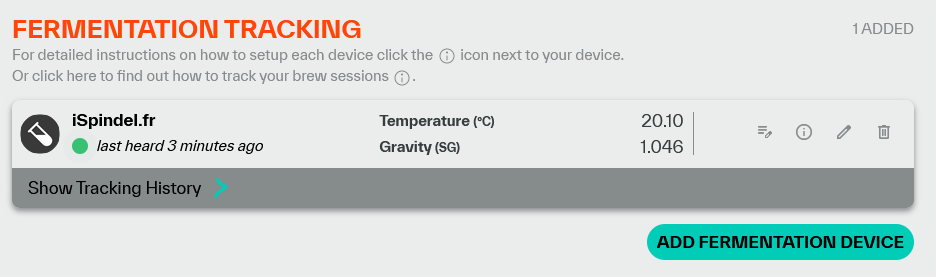
To verify that everything is okay, return to Grainfather. You should see a change appear.
The status “dot” should change from red to green and give you units like density and temperature.
All you have to do is assign your iSpindel to a brew, and you will have the alcohol content and attenuation.